
Bulk modify
Hegemi's bulk import feature allows you to create, modify, or delete large numbers of items, bills of materials (BOMs), and vendor items at once using a spreadsheet. This is particularly useful for:
- Data Migration: Importing your catalog from another system.
- Mass Updates: Exporting your current inventory, editing prices, descriptions, inventory levels, etc, in bulk as a spreadsheet, and re-importing.
- Cleanup: Deleting obsolete items.
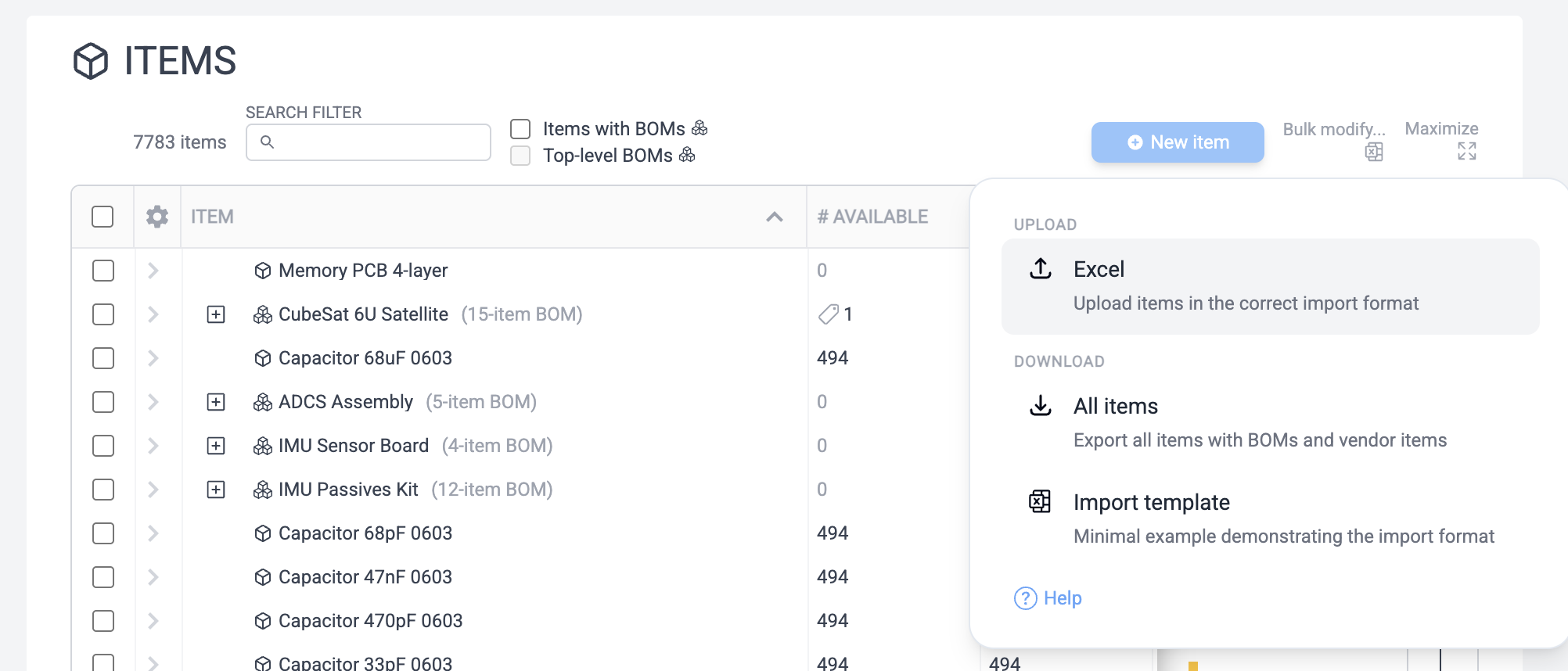
The import format
Hegemi uses a format that allows you to define items, their place in a BOM hierarchy, and their vendor sources all in a single worksheet.
You can download a template containing headers and example data from the Import dialog in the application.
Row structure
Row 1 contains the column headers. Row 2 contains documentation describing each column. Data import begins on Row 3.
Columns overview
The format mixes three types of data in one row:
- Item Definition: Basic properties of the item (Name, Part Number, Description, etc.).
- BOM Link: Defines if this item is a child of another item (the "Parent").
- Vendor Sourcing: Defines where this item can be purchased.
Here are the key columns:
| Column | Description |
|---|---|
| mode | Action to take: New (create), Modify (update), Delete (remove), or Ignore (skip). |
| id | For New items: use any number (e.g. 1, 2, 100) to reference this item elsewhere in the sheet. For Modify: the actual Database ID of the item. |
| name | The name of the item. |
| parentId | (Optional) The id (or name) of another item in this sheet (or database) that is the parent of this item. This creates a BOM connection. |
| irQuantity | If parentId is set, how many of this item go into the parent? |
| vendorName | (Optional) Name of a vendor to source this item from. |
| pricePerUnit | The price from that vendor. |
Understanding IDs and references
When you export data from the database, its item ID is real. If you wish to modify an existing item, you will need this item ID. However if you're creating a new row (New type), these item IDs are strictly temporary and exist only within the context of the spreadsheet, for purposes of referencing (parentId etc).
Scenario: You are importing a "Robot Arm" (Parent) which contains a "Motor" (Child). Neither exists in the database yet.
- Row 1 (Parent):
mode:Newid:1(This is a temporary ID for this file)name: "Robot Arm"
- Row 2 (Child):
mode:Newid:2name: "Motor"parentId:1(Links this Motor to the Robot Arm above)irQuantity:1
When Hegemi processes this, it will create the Robot Arm first, get its real Database ID, create the Motor, and then link them together in the Bill of Materials.
Tip
You can also use text names for parentId, rather than number IDs. If
parentId above is "Robot Arm", Hegemi will look for an item named "Robot Arm"
in the sheet or the database. This can make the hierarchies in the sheet easier
for a person to glance at and comprehend. However the text must match the item
name exactly.
Multiple references
You can reference the same item multiple times by reusing its id. This is useful for:
- Multiple Vendors: Define the item on one row, then add more rows with the same
idbut differentvendorNameandpricePerUnit. - Multiple Parents: An item can be a child of multiple different parents.
You can use the same screw in multiple assemblies, for example. Just add more
rows with the same
idbut differentparentId.
Hegemi will merge the item definition from all rows sharing the same id. If a field (like description) is filled in one row and blank in another, the filled value is kept.
Features
1. Modifying existing data
The bulk import tool is designed to handle mass edits just as easily as new data. Hegemi offers different export options depending on where you are in the application when invoking the bulk import menu:
- Items Table: The full items database can be exported here. This is the primary way to mass-edit Item properties, BOM structures, and Vendor sourcing.
- Item Bill of Materials tab: offers an export of the current item only, in its full recursive hierarchy including children sub-assemblies.
- Vendor items: all items for a particular vendor can be exported from the Vendor's Items tab. Alternatively, all vendors for a single item can be exported in the Procurement tab of an Item editor.
A common workflow for mass updates is:
- In the items tab, choose Download all items from the menu.
- Open the file. You will see columns like
idpre-filled with the real Database IDs andmodeset toIgnore. - Change values (e.g., update
pricePerUnitordescription) on the rows of interest and change those rows'modetoModify. - Re-import the file. Hegemi will update the existing records matching those IDs.
Tip
You don't need to keep every row! If you only want to edit 5 items out of 1000, simply delete the other rows or set their mode to Ignore. The importer will skip them.
2. Custom Fields
If you have configured Custom Fields for Items, they can also be imported.
When you configure a Custom Field in settings, you assign it an Import Key (e.g., shelf_location). To import data into this field, simply add a column to your spreadsheet with that header name (case-insensitive).
- Header: The
Import Keydefined in settings. - Value: The value for that item.
Data dictionary
Item fields
- mode:
New,Modify,Delete,Ignore. - id: Integer ID.
- name: Required string.
- description: Text description.
- partNumber: Internal part number.
- manufacturer: Manufacturer name.
- manufacturerPartNumber: MPN.
- units:
each,m,kg,L,sq_m, etc. Supported units:each,m,mm,cm,km,in,ft,g,mg,kg,ton,lb,oz,L,mL,gal,fl_oz,qt,sq_m,sq_cm,sq_mm,sq_in,sq_ft. - reorderQuantity: Number.
- serialize:
trueorfalse. If true, new instances will track serial numbers. - nUnserialized: Initial quantity of unserialized stock to add.
BOM fields (Item Reference)
These fields only apply if parentId is provided.
- irId: Database ID of the BOM link (used for
Modify). - parentId: ID or Name of the parent item.
- irQuantity: Quantity required per parent instance.
- irUnits: Units for the quantity (usually matches item units).
- irNotes: Notes specific to this usage of the item in this BOM.
Vendor fields (Vendor Item)
These fields only apply if vendorName is provided.
- viId: Database ID of the vendor link (used for
Modify). - vendorName: Name of the vendor.
- pricePerUnit: Cost.
- priceCurrency:
USD,EUR, etc. - vendorPartNumber: SKU at this vendor.
- quantityPerUnit: Pack size (e.g., 100 for a box of screws).
- quantityUnit: Unit of the pack (e.g.,
each). - minimumUnitQty: Minimum order quantity (MOQ).
- leadTime: Days to delivery.
- url: Link to product page.
- viNotes: Notes on this vendor source.
Example: Robot Arm
Here is how a simple hierarchy looks in the import sheet:
| mode | id | name | parentId | irQuantity | vendorName | pricePerUnit |
|---|---|---|---|---|---|---|
| New | 1 | Robot Arm | ||||
| New | 2 | Controller Board | 1 | 1 | ||
| New | 3 | Chip | 2 | 1 | DigiKey | 2.50 |
| New | 4 | Screw M3 | 2 | 4 | McMaster | 0.10 |
This creates:
- Robot Arm (Root)
- contains 1x Controller Board
- contains 1x Chip (sourced from DigiKey)
- contains 4x Screw M3 (sourced from McMaster)
- contains 1x Controller Board